
Error Handling & Debugging
It's super hard to get everything right the first time, trust us, we know! This could be due to typos, wrong logic, or other unforeseen issues from external services. In such cases, it's important to handle errors gracefully and provide useful feedback to users.
The crash screen NEW
When something breaks during development, Leaf shows a crash report instead of a raw error dump. It carries the stack with code excerpts, but also the story around the crash: the request, the signed-in user, and the steps that led there.
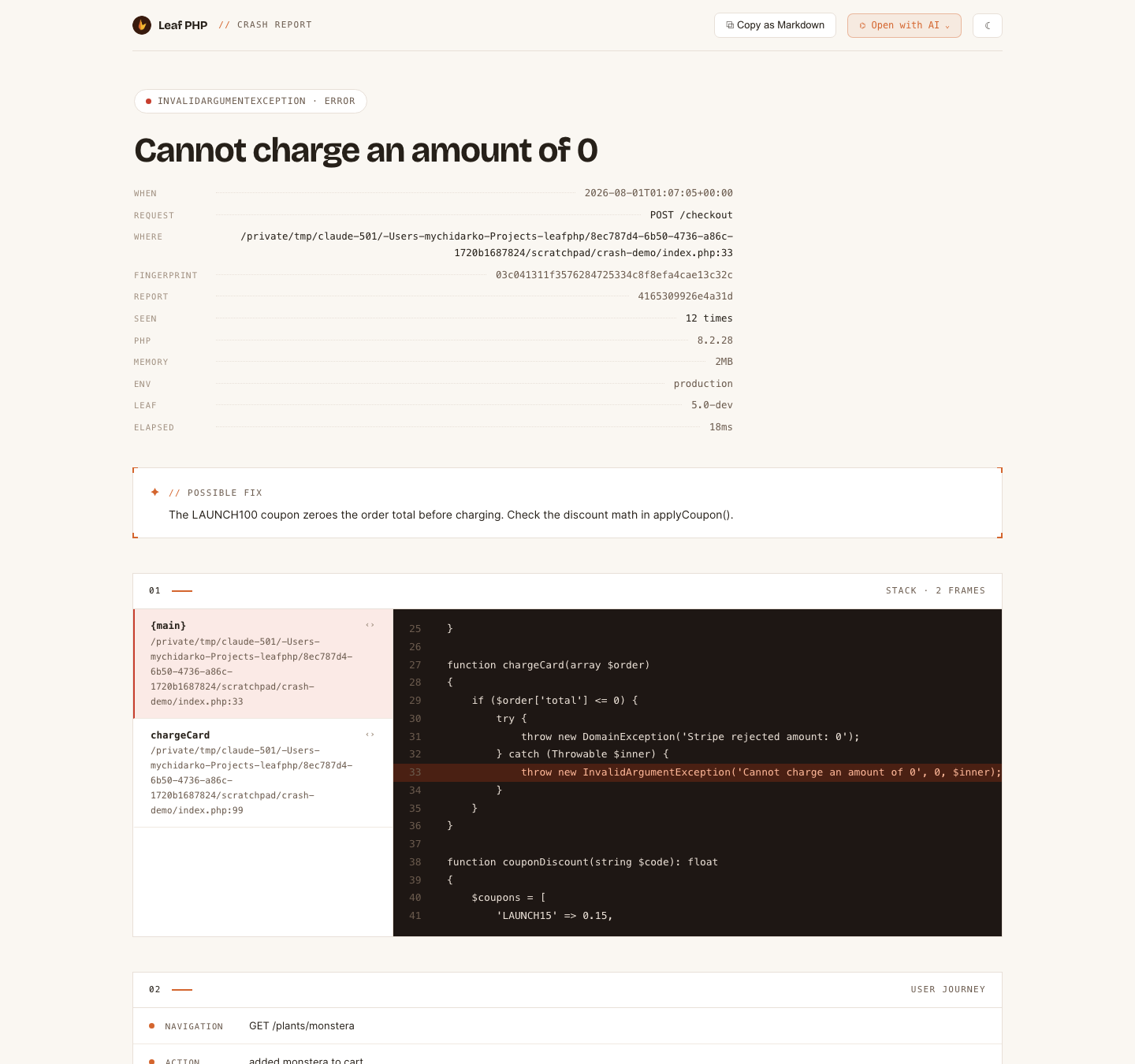
Every report includes:
- The exception, with vendor frames collapsed and code excerpts for every frame
- A fingerprint that identifies this kind of crash across occurrences
- Request, app, and signed-in user context
- The user journey: what the app was doing before it broke
- One-click actions: copy the report as markdown, open it in Claude or ChatGPT, download it as JSON, replay the request as cURL, or jump to the crash line in your editor
The screen follows your system theme, works with no internet connection, and secrets (passwords, tokens, cookies, card numbers) are stripped before the report is even built, so nothing that renders or ships can leak them.
The user journey NEW
Leaf records what your app is doing as it runs: requests from the router, every database query (from both db() and your models), log lines, cache misses, outgoing HTTP calls from fetch(), and view renders. When a crash happens, that trail is right on the report.
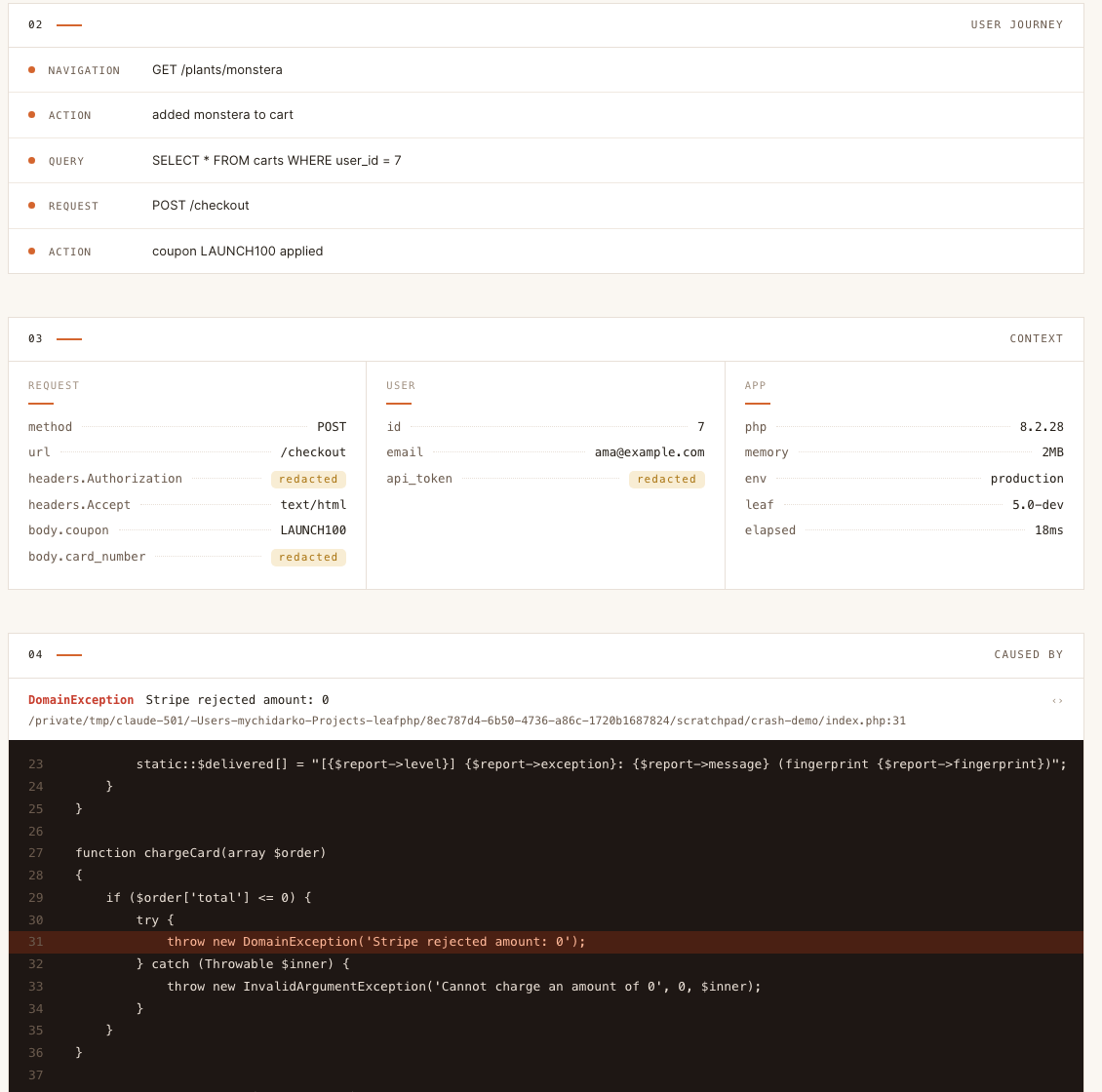
You can add your own steps for the moments only your code understands:
crash()->leaveCrumb('coupon applied', 'action', ['total_after' => $total]);Clicking a step on the crash screen expands it in place: the attached data as a collapsible tree, when it happened, and which function recorded it. Recording a step costs about a microsecond, so the journey is always on without slowing your app down.
Checkpoints: debugging without an exception NEW
Some bugs never throw. The checkout "works" and the total is somehow zero. Drop a checkpoint into the flow and Leaf files a full report, exactly like a crash: stack trace starting at your call site, journey, context, and any variables you want to see.
if ($order['total'] <= 0 && count($order['items']) > 0) {
    crash()->capture('order total is 0 but cart has items', [
        'level' => 'warning',
        'peeks' => ['order' => $order],
    ]);
}
peeks snapshots variables safely: depth, size, and string limits are applied when the value is captured, and secrets are masked like everywhere else.
Debugging with AI NEW
The "Open with AI" menu on the crash screen builds a briefing from your project's .leaf/CONTEXT.md, the user journey, and the crash itself with code, then opens it in Claude or ChatGPT with one click. You can also copy the prompt or download the whole report as JSON to use with any tool.
This works noticeably better than pasting a stack trace: the journey shows the AI what the user did, not just where the code stopped.
Disabling Error Reporting
While Leaf's detailed crash screen is super useful during development, it's not something you want in production, as it can expose information about your application. In Leaf 5, setting APP_ENV=production turns debug output off by default. You can also disable it explicitly with the debug config or the APP_DEBUG environment variable in Leaf MVC.
app()->config([
  'debug' => false
]);APP_DEBUG=falseWith debug off, users see a clean branded error page with no internals, and the full report still goes to your logs and any reporting services you attach. You can replace the page with your own using setErrorHandler():
app()->setErrorHandler(function () {
  echo "<h1>My custom error page</h1>";
});
We understand that you might want to enable debugging in production for some reason, however, doing that can expose sensitive information about your app, which can be used by attackers to exploit your app. If you truly need to debug in production, you should turn to logging instead.
Logging
Logs are records of events in your application. They capture significant things like errors, requests, or user actions, helping you track your app's behavior.
Log files are essential for debugging and understanding production issues. A typical log file looks like this:
[2021-03-31 22:44:53]
ERROR - ErrorException: Trying to access array offset on value of type int in /home/mychi/Projects/leafphp/app/controllers/OrdersController.php:83
Stack trace:
#0 /home/mychi/Projects/leafphp/app/controllers/OrdersController.php(83): Leaf\Exception\General::handleErrors()
#1 /home/mychi/Projects/leafphp/app/routes/index.php(45): App\Controllers\OrdersController->show()
#2 [internal function]: {closure}()
#3 /home/mychi/Projects/leafphp/vendor/leafs/leaf/src/Router.php(337): call_user_func_array()
#4 /home/mychi/Projects/leafphp/vendor/leafs/leaf/src/Router.php(392): Leaf\Router::invoke()
#5 /home/mychi/Projects/leafphp/vendor/leafs/leaf/src/Router.php(443): Leaf\Router::handle()
#6 /home/mychi/Projects/leafphp/vendor/leafs/leaf/src/App.php(863): Leaf\Router::run()
#7 /home/mychi/Projects/leafphp/public/index.php(52): Leaf\App->run()
#8 {main}
Leaf offers a user-friendly logger for logging errors and other stuff in your app. It's integrated with Leaf's core, so no initialization is required, and you may not need to use the logger directly.
Manually Installing Logger
Leaf's logger is included by default when you create a new Leaf MVC project, but if you're using Leaf without Leaf MVC, or previously uninstalled the logger module, you can manually install it by following the steps below.
leaf install loggercomposer require leafs/loggerConfiguration without Leaf MVC
Once you have installed the logger module, you need to tell Leaf to log all exceptions/errors. You can do this simply by enabling the log.enabled configuration option.
app()->config([
  'log.enabled' => true
]);
You also need to tell Leaf which directory to save logs into. By default, Leaf saves logs in the logs directory in your app's root directory. You can change this by setting the log.dir configuration option:
app()->config([
  'log.enabled' => true,
  'log.dir' => __DIR__ . '/logs/'
]);
All logs will be saved in a log.txt file in the directory you specify. You can also specify a custom log file name by setting the log.file configuration option:
app()->config([
  'log.enabled' => true,
  'log.dir' => __DIR__ . '/logs/',
  'log.file' => 'app.log'
]);
Usage with Leaf MVC
If you are using Leaf MVC, the logger is already installed and configured for you, so you don't need to do anything. By default, Leaf MVC saves logs in the storage/logs directory in your app's root directory.
Whenever you run into an error or exception, Leaf will automatically log it for you, even if error reporting is disabled.
If you decide to disable logging for your app, you can simply get rid of the logger module by running:
leaf uninstall loggerThat's it! Leaf will no longer log errors or exceptions for your app.
Rescue Helper
Leaf provides a shorter way to handle exceptions using the rescue() function. It runs your callback, catches anything thrown inside it, reports the exception to Crash, and returns a default value. This way, you can use try-catch with a more inline syntax.
$someRiskyOperation = function () {
    // Code that may throw an exception
};

$someValue = rescue($someRiskyOperation, 'default value');
In this example, if $someRiskyOperation() throws an exception, rescue() catches it and returns 'default value' instead. This is particularly useful for operations that may fail, such as database queries or API calls, without having to write verbose try-catch blocks, and is still useful even when you don't have to return a value.
rescue(function () {
    // Code that may throw an exception
});
Here the exception is caught and no error reaches the user. This suits work you want to attempt but never let break the page, like sending a notification email or recording activity.
If you need the exception itself to build the fallback, pass a closure as the default:
$user = rescue(
    fn () => $api->fetchUser($id),
    fn ($e) => ['name' => 'Unknown', 'error' => $e->getMessage()]
);
Rescued exceptions still reach you
A rescued exception is handled, not invisible. Leaf reports it at warning level and drops a breadcrumb into the user journey, so it reaches your reporters and shows up as context on the crash page if something else fails later in the same request.
That matters because swallowed exceptions are how bugs hide. The empty catch block that "fixed" a problem in staging is the one you want to see when a real failure happens next to it.
If a particular rescue() is noisy and you genuinely don't want it recorded, pass false as the third argument:
rescue(fn () => $cache->warm(), null, false);Maintenance Mode
There are times where you need to take your application down for maintenance. This may be due to updates or other external reasons. Putting your application in down mode will display a maintenance message to users, and prevent them from accessing your application.
You can enable down mode by setting the app.down configuration option to true.
app()->config([
  'app.down' => true
]);
When your application is in down mode, Leaf will automatically load the down screen. You can customize this screen using Leaf's setDown() method.
app()->setDown(function () {
  echo 'Custom Down Handler!';
});
You can use this method to display a custom html page or any other content you want to show users when your application is in down mode.
app()->setDown(fn () => response()->page('./down.html'));